2FA Troubleshooting
Having trouble with an authenticator code? Start with these checks to resolve common time, setup, and QR-code issues. The exact steps can vary by the service you are signing in to. You can also generate your codes with our free 2FA auth tool.
Why Is My 2FA Code Not Working?
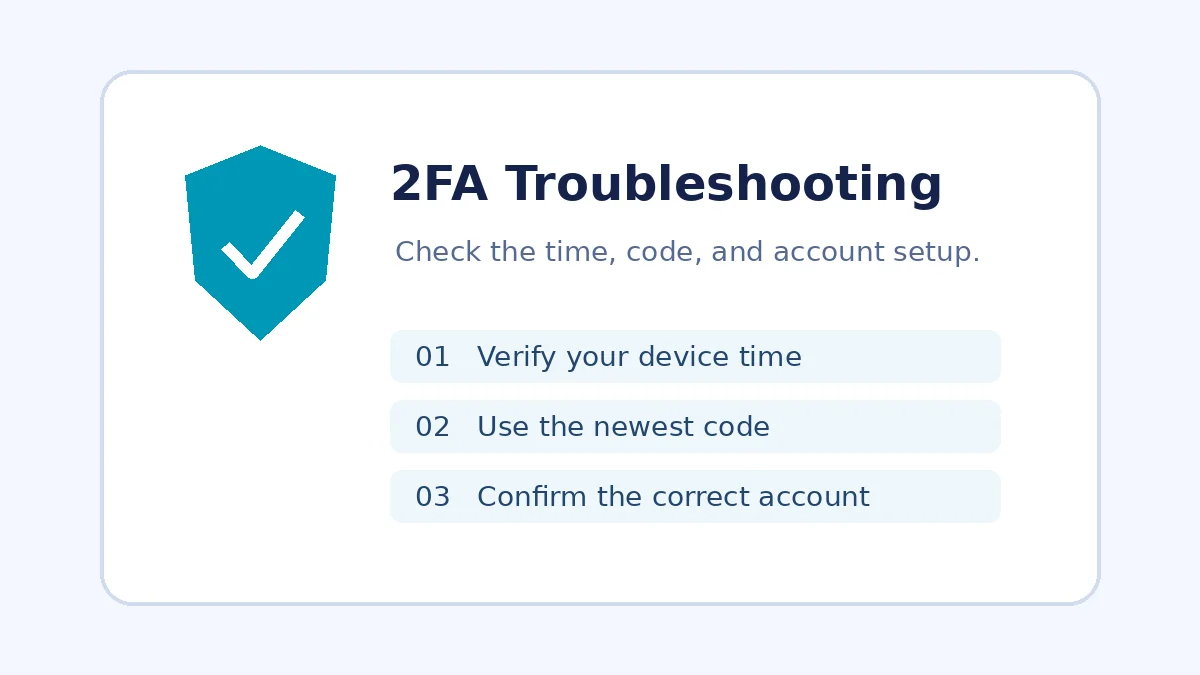
Authenticator codes expire regularly. Enter the current code before it changes, and check that you selected the correct account entry for the service you are trying to access.
- Wait for a fresh code and enter it promptly.
- Confirm that the authenticator entry matches the correct account.
- Check your device date, time, and time zone settings.
How to Fix an Invalid Authenticator Code
Make sure the setup secret or QR code came from the official account security settings. If you recently reset two-factor authentication, remove an outdated entry and set it up again using the service’s current instructions.
Never share your secret key or one-time codes with anyone.
Why Is My Code Out of Sync?
TOTP codes depend on the current time. Enable automatic date and time on your device, verify the time zone, and retry with a newly generated code. If the problem continues, follow the account provider’s official authenticator troubleshooting steps.
What If My QR Code Will Not Scan?
- Increase screen brightness and make sure the entire QR code is visible.
- Clean the camera lens and avoid glare or blur.
- If the service provides a manual setup key, enter it carefully instead.
Only scan QR codes from a service you trust and that you intended to configure.
What If I Lose My Authenticator Device?
Use the service’s official recovery codes or account recovery process. If you still have access, set up a new authenticator and securely store new recovery codes. Support options depend on the service.
Security Reminder
Never send your 2FA secret key, QR setup code, recovery codes, or one-time passcodes to someone offering help. Only use official account recovery pages for the service involved.